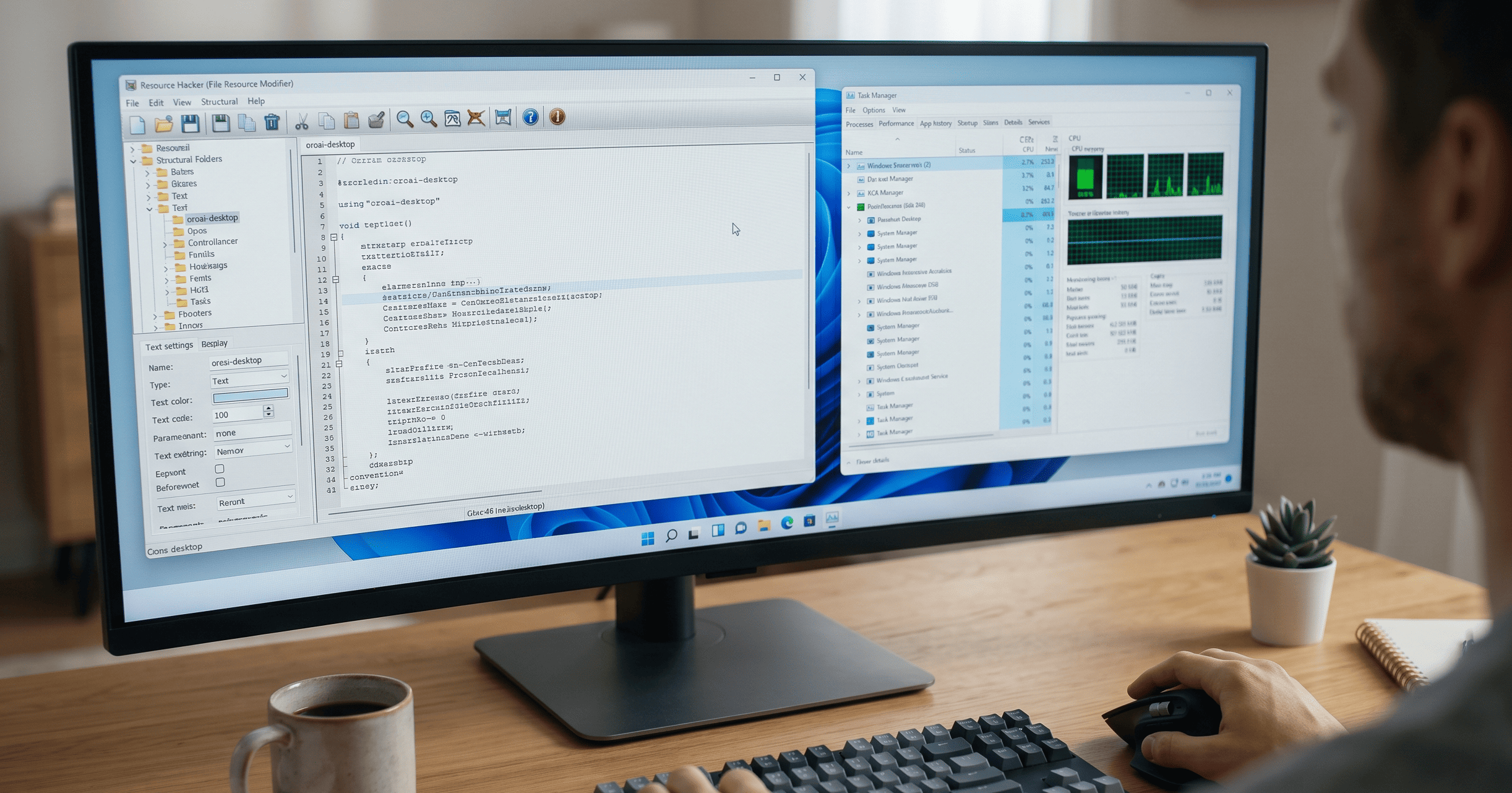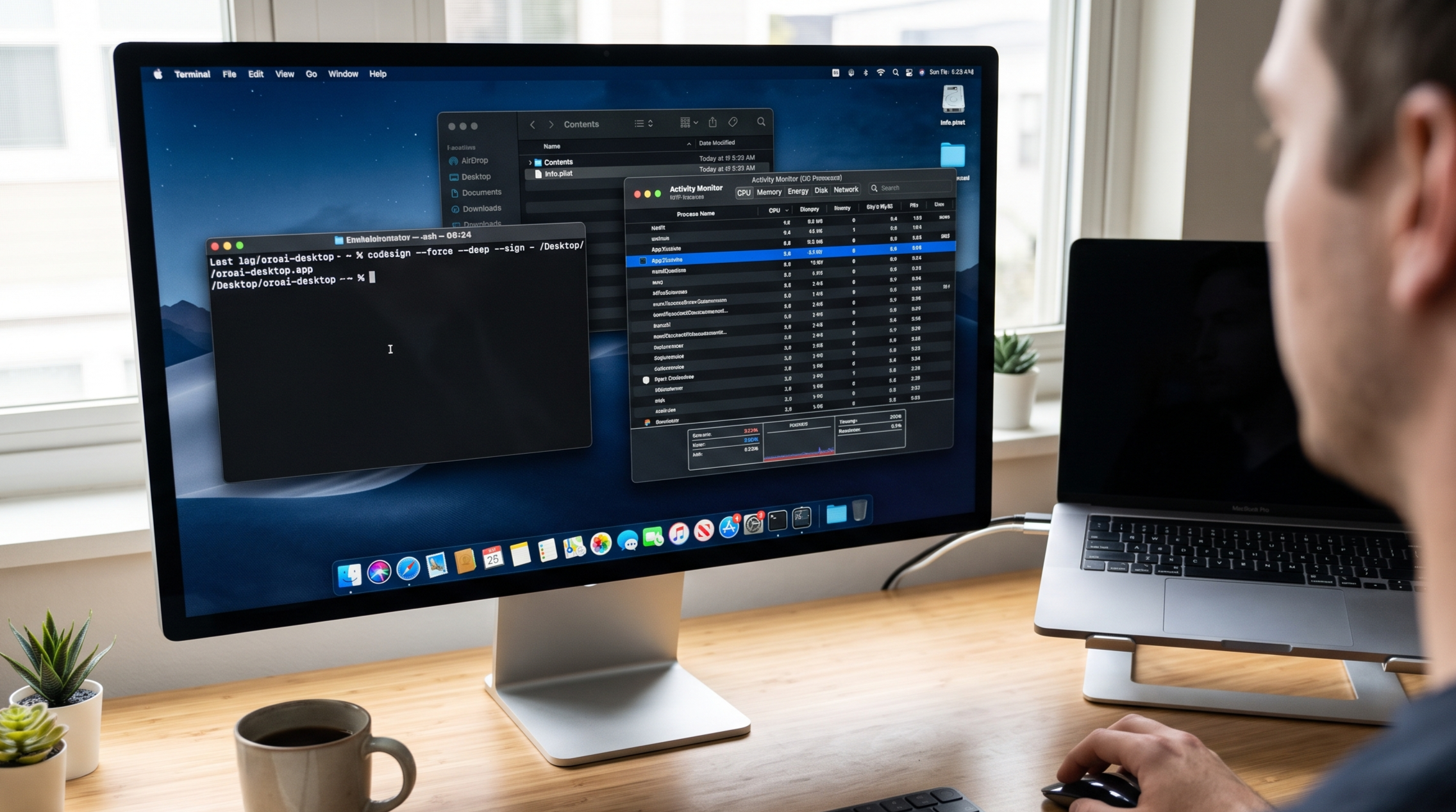
Maintaining a private and distraction-free workspace during remote interviews or screen-sharing sessions is just as important on a Mac as it is on a PC. However, masking an application on macOS requires a different approach than Windows.
Unlike Windows executables, macOS applications are package bundles protected by strict Code Signing. Changing a macOS app's name breaks its cryptographic signature, causing macOS Gatekeeper to block it from opening. To successfully disguise oroai-desktop in the Activity Monitor, you must modify its internal files and manually generate a new ad-hoc signature.
Here is the step-by-step technical process to rename and hide your application on macOS.
Prerequisites
- oroai-desktop Application: Ensure the app is installed in your Applications folder.
- Administrative Privileges: You will need admin access to use Terminal commands.
- Text Editor: A plain text editor like TextEdit, or Xcode if you have it installed.
Step-by-Step Guide to Masking oroai-desktop on macOS
1. Duplicate the App Bundle
Never modify the original application directly. If you make a mistake, you want a clean version to fall back on.
- Open your Applications folder.
- Locate
oroai-desktop.app. - Copy and paste it to your Desktop (or another safe folder) to work on the duplicate.
2. Modify the Application Metadata
The name that appears in Activity Monitor is controlled by a configuration file hidden inside the app bundle.
- Right-click your duplicated
oroai-desktop.appand select Show Package Contents. - Open the Contents folder and locate the
Info.plistfile. - Open
Info.plistwith your text editor. - Search for the following keys and change the string values directly beneath them to your desired disguised name (e.g.,
SysRuntimeorBackgroundService):<key>CFBundleName</key><key>CFBundleDisplayName</key><key>CFBundleExecutable</key>(This is the critical key for Activity Monitor).
- Save your changes and close the file.
3. Rename the Internal Binary
Next, you must rename the actual Unix executable file to perfectly match whatever you just typed under the CFBundleExecutable key.
- Still inside the Contents folder, open the MacOS folder.
- Inside, you will see a Unix executable file named
oroai-desktop. - Rename this file to exactly match your new
CFBundleExecutablestring (e.g.,SysRuntime).
4. Re-sign the Application via Terminal
Because you tampered with the bundle's contents, macOS security will refuse to run it. You must generate a local, ad-hoc signature to bypass Gatekeeper.
- Open the Terminal app (found in Applications > Utilities).
- Type the following command, making sure to leave a single space at the very end:
Bash
codesign --force --deep --sign -- Drag your modified
.appbundle from your Desktop directly into the Terminal window. This automatically fills in the correct file path. - Press Enter.
You should see a confirmation message stating the app was replaced or re-signed. When you launch this newly signed application, it will execute under your assigned name, masking its true identity inside the macOS Activity Monitor.
Limitations and Best Practices
- Advanced Security Checks: While this method works for most standard applications, some apps contain aggressive internal integrity checks or rely on Keychain Access groups tied to their original developer certificate. If oroai-desktop implements these advanced features in future updates, the ad-hoc signed version may fail to authenticate.
- App Updates: If oroai-desktop receives an update, the new installation will overwrite your disguised app. You will need to repeat this process for the new version.
- Blend In: Choose a discreet name for your bundle executable that mimics standard macOS background processes, avoiding suspicious names that might draw unwanted attention.